
Set Up a Glade Org and Import Data With sf
Task guide
Create a local Glade org target, register it with the Salesforce CLI, and import sample data.
- Create and start a Glade org.
- Write the target into an isolated `sf` config.
- Import tree data and query it back.
Before you start
glade doctor --project .passes from the Salesforce DX project root.- The Salesforce CLI
sfis installed. - The project has a Salesforce tree import plan and data files.
- Pick a local target alias and use it consistently in every command below.
- Screenshots for this article are captured in a terminal.
- This creates a local Glade target. It does not create a Salesforce scratch org.
- For this walkthrough, use a disposable Salesforce CLI home so the local target does not touch your real org list or macOS Keychain.
Steps
1. Create and start the Glade org
bash
glade org create <local-target> --project .
glade org start <local-target> --project .
Expected: Glade writes .glade/orgs/<local-target>.sqlite and starts a loopback server for the saved target.
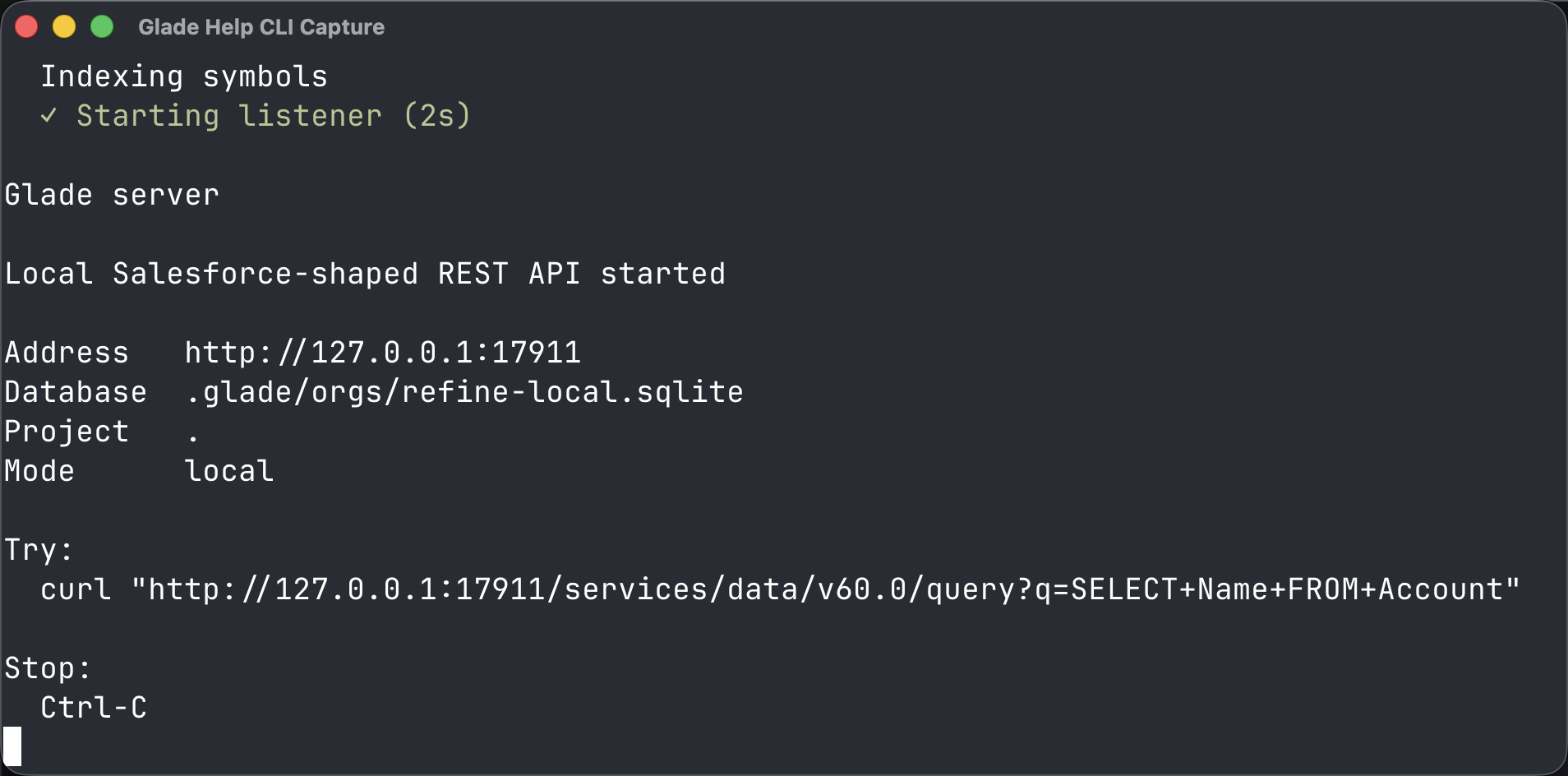
2. Register the target with sf
Open a second fresh terminal window in the same project and run:
bash
export GLADE_SF_HOME="$PWD/.glade/sf-home"
mkdir -p "$GLADE_SF_HOME"
export HOME="$GLADE_SF_HOME"
export SF_USE_GENERIC_UNIX_KEYCHAIN=true
export SFDX_USE_GENERIC_UNIX_KEYCHAIN=true
export SF_DISABLE_TELEMETRY=true
export SF_SKIP_NEW_VERSION_CHECK=true
glade org auth <local-target> --project .
sf org list
Expected: Glade writes a local Salesforce CLI authorization, sf reports Successfully authorized, and sf org list shows only the local <local-target> target.
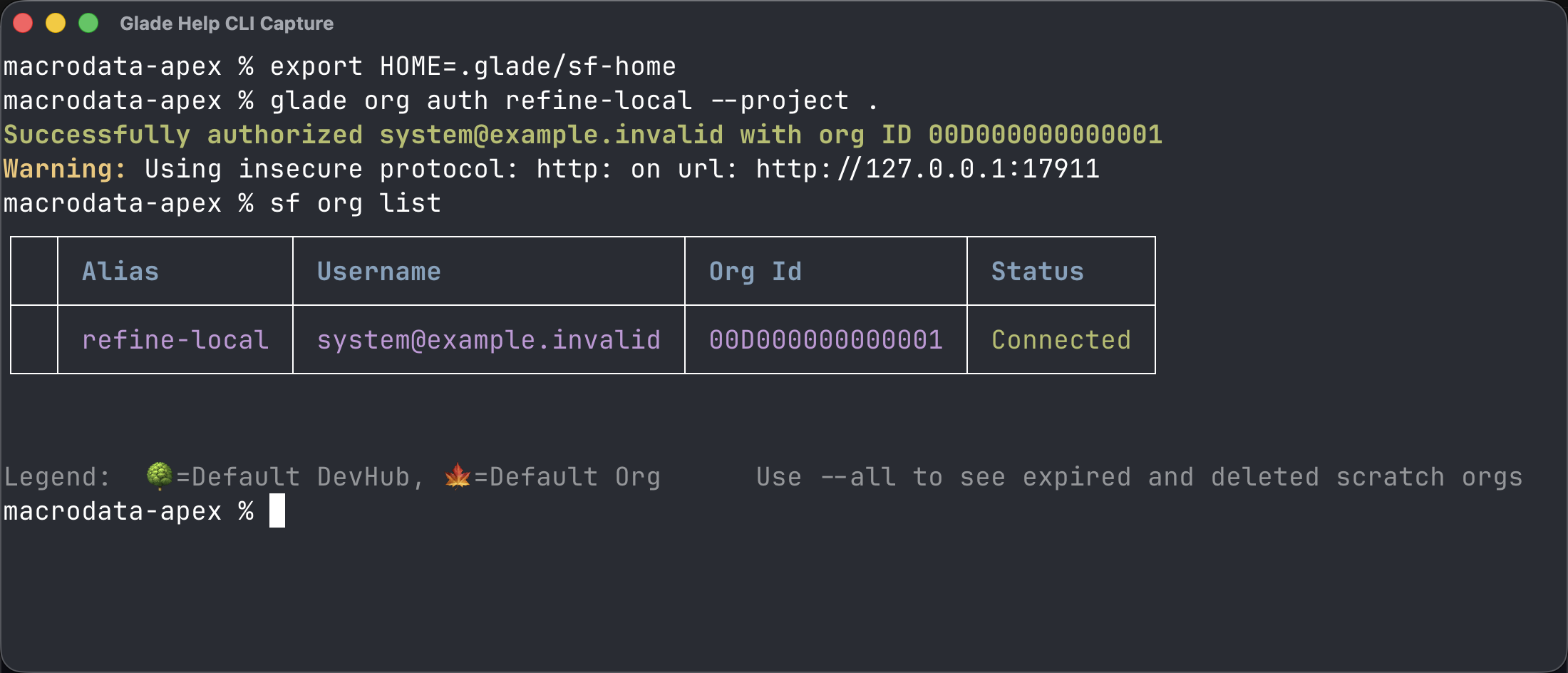
3. Import and query data
bash
sf data import tree --plan <plan-file> --target-org <local-target>
sf data query --query "SELECT Id, Name FROM Account" --target-org <local-target>
Expected: the import succeeds and the query returns the local rows.
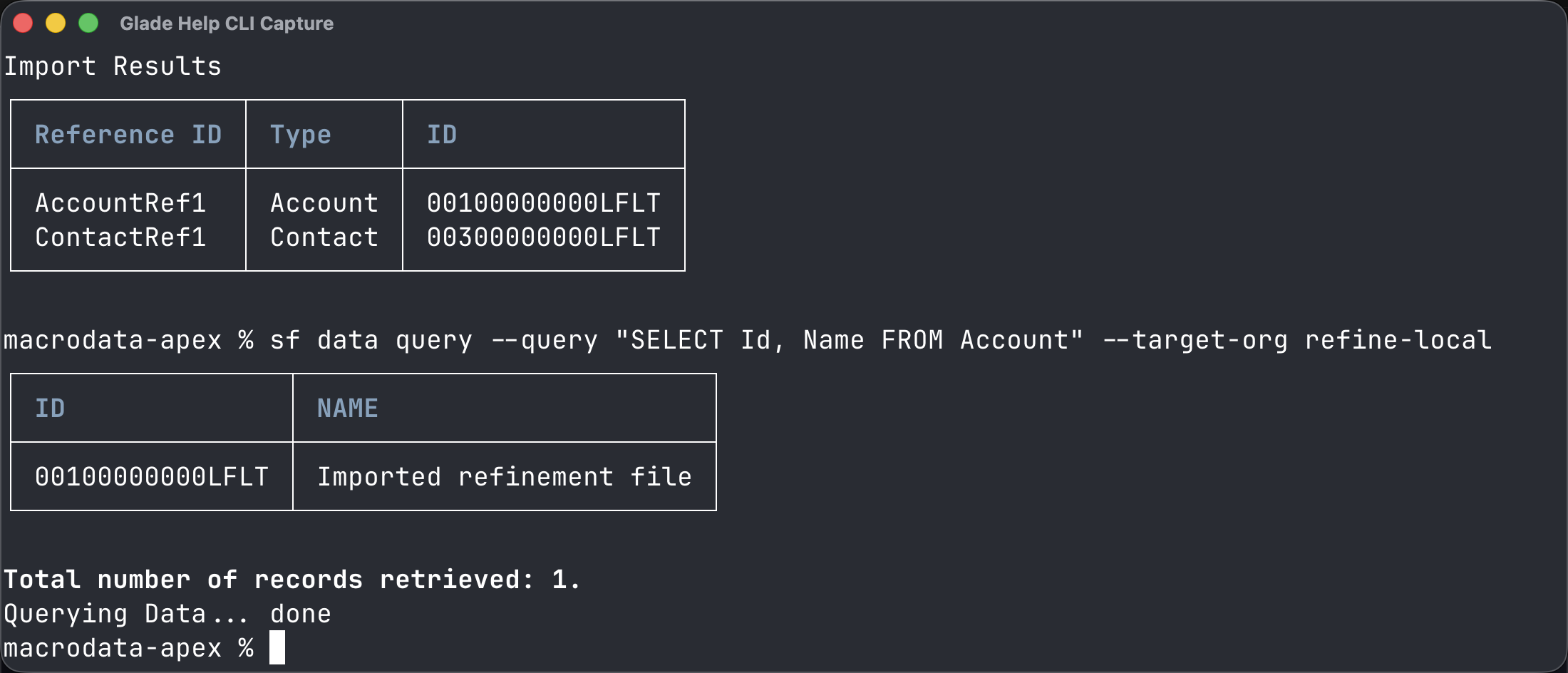
Common wrong turn
If sf cannot find the target, make sure the same terminal window still has HOME="$PWD/.glade/sf-home" and SF_USE_GENERIC_UNIX_KEYCHAIN=true set.