
Work With Local Data Environments
Task guide
Create, switch, seed, inspect, reset, and export local SQLite-backed Glade environments.
- Use a named environment for the local DB.
- Open a browser record manager for create, edit, delete, and undelete.
- Clone an environment for a branch.
- Seed and inspect local data.
Before you start
- Glade is initialized in a Salesforce DX project.
- For the editor steps, VS Code has the bundled Glade extension installed; other extensions and themes can remain.
- These environments are local SQLite files. They do not copy Salesforce org data unless you import or seed data yourself.
Steps
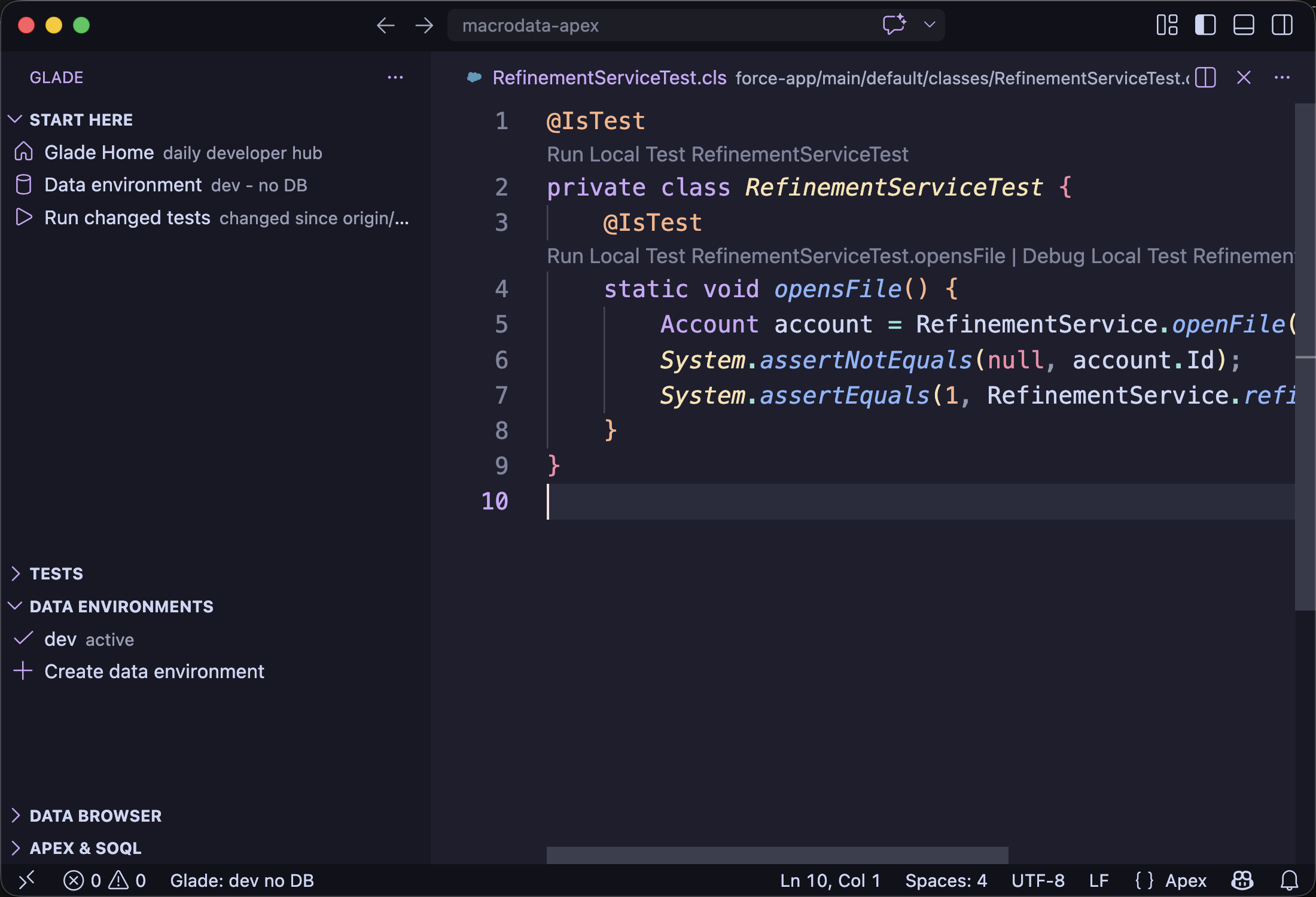
1. Inspect the active environment in VS Code
Open the Glade side view. Use Data Environments and Data Browser to see the active DB.
2. Seed and inspect from a terminal
glade doctor --project .
glade db seed --project . <seed-file>
glade db inspect --project .
Expected: doctor shows the project local data environment, and db inspect reports local rows in the default project DB.
Use a named environment when you want a separate project DB:
glade db seed --project . --env qa <seed-file>
glade db inspect --project . --env qa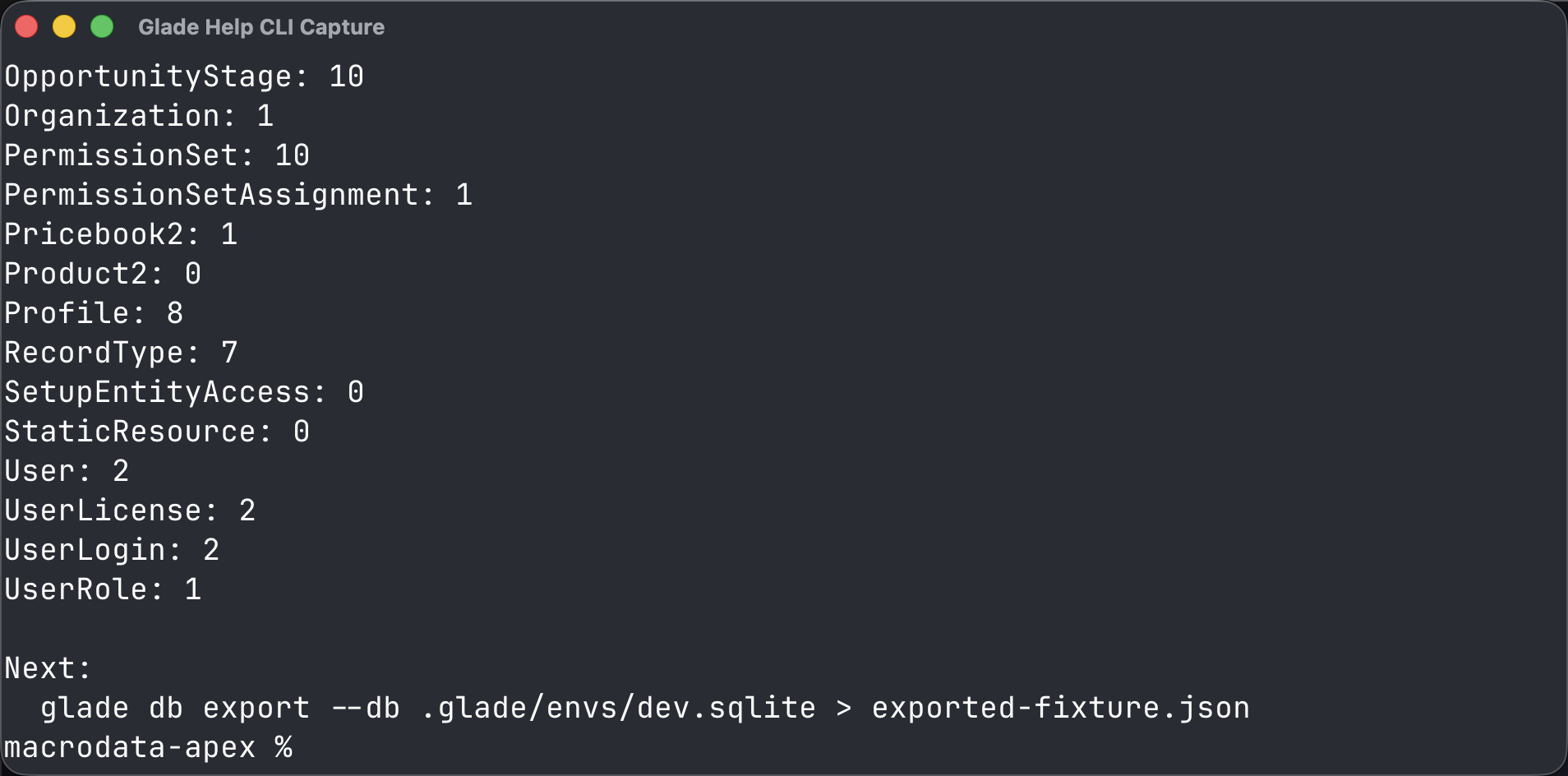
3. Open the browser record manager
glade db ui --project .Expected: Glade opens /db for the default project DB. Use the object rail to pick an object, then use Create, Save, Delete, and Undelete from the record table and drawer.
Use a named project DB when you need a separate data set:
glade db ui --project . --env qaFor automation or smoke tests, avoid opening a browser and wait on a ready file:
glade db ui --project . --addr 127.0.0.1:0 --no-open --ready-file /tmp/glade-db-ui-ready.jsonCommon wrong turn
Do not reuse a SQLite file from another project. Glade binds local DBs to the project schema and stops early when the object or field shape does not match.
Glade: Clone Local Data Environment copies local SQLite state. It does not contact Salesforce or refresh data from an org.